How to Start a Podcast on Spotify for Free (2026)
Updated October 2026 · Covers Spotify for Creators (the new name of Spotify for Podcasters) · By the ZenMic Team
The short answer
To start a podcast on Spotify, make at least one episode, host it on Spotify for Creators or on any podcast host that gives you an RSS feed, then add the show at creators.spotify.com and verify it with the code Spotify emails you. It costs $0, and you don't need a microphone if you make the audio with AI.
- Pick a topic and a name
- Make your first episode
- Make square cover art
- Choose where the show is hosted
- Copy your RSS feed URL
- Add the show in Spotify for Creators
- Wait for it to go live, then share it
Spotify does not record or edit podcasts for you in the usual sense. It lists shows. Your job is to give it audio and a feed, and that part is free. This guide covers the full path, from a blank page to a live Spotify link, including how to do it with no microphone. If you want the general picture first, read our step-by-step guide to starting any podcast; if budget is the main worry, see the $0 podcast tool stack.
What should your first Spotify episode be about?
Most shows launch with a short pilot or trailer that says who the show is for. Click an idea to open it in the ZenMic studio, where the AI writes a script you can edit before it is voiced.
From idea to Spotify without a microphone
How do you start a podcast on Spotify, step by step?
Pick a topic and a name
Decide who the show is for and what each episode gives them, then choose a short, searchable name.
Not sure what to call it? The free podcast name generator gives you a list of names for any topic in seconds.
Make your first episode
Record yourself, or type a topic into an AI podcast generator such as ZenMic, edit the script it writes, and export an MP3. Spotify needs at least one episode before it accepts a show.
Recording? A phone in a quiet room is enough to start. Not recording? Here is how to make a podcast without a microphone. To draft the words first, try the AI podcast script generator.
Make square cover art
Create a square JPG or PNG between 1400 x 1400 and 3000 x 3000 pixels with a few large words that stay readable as a small thumbnail.
The podcast cover art prompt generator writes a prompt you can paste into a free image tool. Check the result at thumbnail size before you upload it.
Choose where the show is hosted
Either upload episodes to Spotify for Creators, which hosts them for free, or use a podcast host that gives you an RSS feed, such as a ZenMic project.
Both routes are free. The table below compares them.
Copy your RSS feed URL
If you host outside Spotify, copy the feed URL from your host. In ZenMic, open the project and click Publish to Spotify & Apple.
ZenMic creates a feed for every project automatically. See how the free podcast RSS feed works.
Add the show in Spotify for Creators
Sign in at creators.spotify.com, choose to add an existing show, paste the RSS feed URL, enter the verification code Spotify emails to the address in the feed, add category and language, and submit.
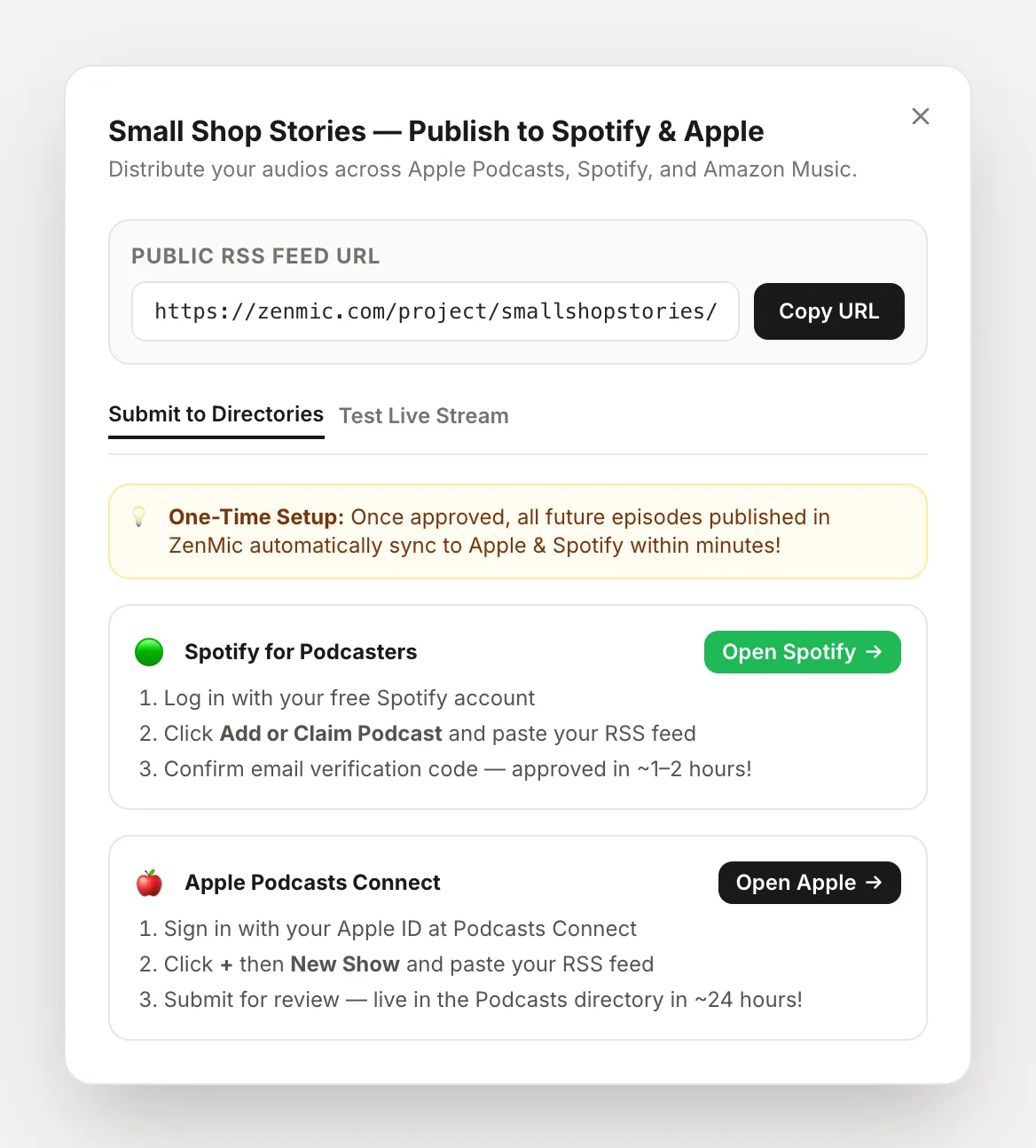
The full walkthrough, with a picture of the screen, is in the RSS submission section below.
Wait for it to go live, then share it
New shows often appear within hours, sometimes a few days. Then share the Spotify link and keep a steady release schedule.
Use the same feed for Apple Podcasts and Amazon Music too. It is free and takes a few minutes each.
Should you host on Spotify for Creators or use your own RSS feed?
Podcast hosting is where your audio files live. An RSS feed is the web address that lists your episodes so apps like Spotify and Apple Podcasts can pull them in. You need one or the other route below, not both.
| Host on Spotify for Creators | Host elsewhere, submit RSS (e.g. ZenMic) | |
|---|---|---|
| Cost | Free | Free to submit. Hosting cost depends on the host; ZenMic includes a feed with every project. |
| Who makes the audio | You record and upload it | You record it, or ZenMic writes and voices it from a topic or text |
| How episodes reach Spotify | Published directly | Spotify reads new episodes from the feed automatically |
| Apple Podcasts, Amazon Music | Possible via the RSS feed Spotify provides | Submit the same feed to each |
| Spotify's own earning programs | Built around shows hosted here; eligibility rules apply | Usually limited; sponsorships and affiliate links still work |
Rule of thumb: if you already record your own audio and want Spotify-only features, host on Spotify for Creators. If you want to make episodes without recording, or keep your show portable across platforms, use an RSS host.
How much does it cost to start a podcast on Spotify?
It can cost $0. Spotify charges nothing to list a show. What you spend depends on how you make the audio. For a line-by-line estimate of your own setup, use the podcast cost calculator.
| Setup | What you need | Rough cost |
|---|---|---|
| 🤖 AI, no mic | ZenMic: type a topic or paste text, edit the script, get an MP3 and an RSS feed. | $0 on the free trial |
| 📱 Smartphone | Record in a quiet room with soft furnishings. Clean up in Audacity (free). | $0 |
| 🎙️ USB mic | An entry-level USB microphone plugged into your laptop. | About $40 to $100 |
| 🎚️ Pro setup | Dynamic mic, audio interface, some room treatment, paid editing software. | $300 and up |
💡 Tip: start cheap and publish 10 episodes before buying gear. By then you will know what your show actually needs. More options in the free AI podcast generator overview.
Should you record your voice or use AI voices?
Both work on Spotify. Recording gives you your own voice and personality. AI is faster and needs no gear, and you can still put your own voice in with voice cloning.
Record it yourself
- ✓ Your real voice and reactions
- ✓ Good for interviews with real guests
- ✗ Needs a quiet room
- ✗ Editing takes time
Make it with ZenMic
- ✓ No mic or recording
- ✓ AI writes a multi-speaker script you can edit
- ✓ 30+ voices, 100+ languages, or clone your own
- ✓ MP3 download plus an RSS feed for Spotify
How do you add an RSS feed to Spotify for Creators?
Do this if your episodes are hosted anywhere other than Spotify. You only do it once; after that, Spotify checks your feed for new episodes on its own.
1. Get your RSS feed URL
In ZenMic, every project gets its own feed. Open the project in the studio and click Publish to Spotify & Apple. A window shows the feed URL with a copy button, plus links to test the feed and to each directory's submit page.
2. Paste it into Spotify for Creators
- Go to creators.spotify.com (the old podcasters.spotify.com address sends you there) and sign in with a Spotify account.
- Choose to add a podcast, then pick the option for a show that is already hosted somewhere else.
- Paste your RSS feed URL and continue.
- Spotify emails a verification code to the owner email listed in the feed. Enter it to prove the show is yours.
- Add the details Spotify asks for, such as category, language and country.
- Review and submit. Your show page usually goes live within hours.
Spotify renames buttons from time to time, so the exact labels may differ from this list.
Want the same show on Apple too? Submit the same feed at podcastsconnect.apple.com with an Apple Account. The complete beginner's podcast guide covers Apple and other directories step by step.
What does a good pilot episode sound like?
A pilot answers three questions in a few minutes: who is this for, what will I get, and why should I follow. Here is a two-host example. Click Generate This Audio to open it in the studio with the script filled in, change anything you like, and have it voiced.
Sample pilot episode script (2 speakers)
What are the most common mistakes when starting on Spotify?
1. Cover art that breaks the rules
Use a square image, 1400 to 3000 pixels, JPG or PNG. Tiny text that is unreadable as a thumbnail costs you clicks even when it is accepted.
2. No inbox access for the feed email
Spotify sends the verification code to the owner email in your RSS feed. Make sure it is an address you can open. ZenMic uses your account email.
3. Submitting an empty feed
Spotify needs at least one published episode. A one-minute trailer is enough to get listed.
4. Keyword-stuffed titles
"Marketing Podcast | SEO | Business | Money" reads as spam and breaks Spotify's metadata rules. Use a real name plus a clear description.
5. Launching and then going quiet
Pick a schedule you can keep, even every two weeks. If recording is what slows you down, make the next episode from a topic in ZenMic.
How do you grow and make money from a Spotify podcast?
Getting listed is step one. These are the realistic options for a new show:
Spotify's programs
Spotify runs programs such as the Spotify Partner Program. They are limited to certain countries and have eligibility thresholds, so check the current rules inside Spotify for Creators.
Sponsors and affiliates
Niche shows can land small sponsors early. Put affiliate links in your show notes; the show notes generator drafts them for you.
Listener support
Membership sites, bonus episodes and tip jars work on any host, and do not depend on Spotify's eligibility rules.
📣 Promotion quick wins
- Share your Spotify show link everywhere you already post, every time an episode goes out.
- Turn a strong 30-second moment into a captioned clip with the audiogram maker for Reels, Shorts or TikTok.
- Submit the same RSS feed to Apple Podcasts and Amazon Music so listeners on any app can follow.
- Turn each script into a blog post or newsletter that links back to the show.
Frequently Asked Questions
Make your first Spotify episode today
Type a topic, edit the script the AI writes, and get an MP3 plus an RSS feed you can add to Spotify. Free trial, no credit card.
Make your first episode nowKeep Reading: Related Guides
How to start a podcast: the full beginner's guide
Topic, name, script, recording, cover art and every major directory, not just Spotify.
How to start a podcast for free: the $0 tool stack
Every free tool you need, with the real free-plan limits.
How to make a podcast without a microphone
Turn text into a voiced, multi-speaker episode with no recording.
Free podcast RSS feed for Spotify and Apple
How ZenMic creates a feed for every project and keeps it updated.